Invalidate Staff Access
There are multiple options when you need to invalidate staff access. The best method depends on the Ambiance modules authorized for your operator account and the reason that you want to invalidate access.
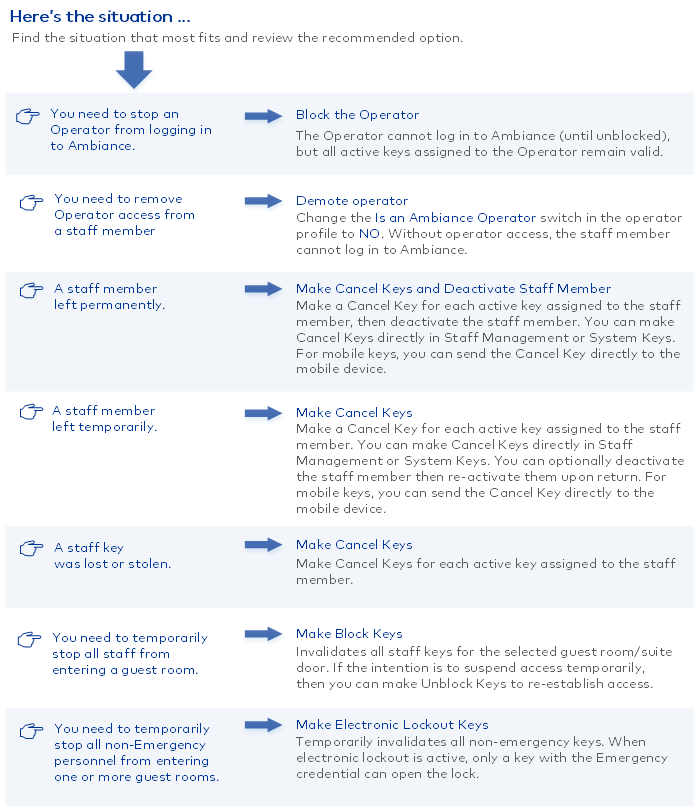
 Block/Unblock operator access
Blocking an operator prevents the operator from logging in to Ambiance. Operators may be blocked automatically due to security controls such as exceeding the failed login threshold or failing to renew an expired password. If an operator is automatically blocked, you must unblock access manually.
To manually block or unblock Operator access:
- Select an operator profile.
- Click the Operator Info tab.
- For Block software access:
- To block access, slide the switch to YES.
- To unblock access, slide the switch to NO.
- Click (Save)
 .
. - Click YES to confirm the action.
Demote operator
To permanently remove operator access from a staff member:
- Select an operator profile.
- On the Staff Member Info tab, change the Is an Ambiance Operator? switch to NO.
- Click (Save) . The Operator Info tab and access to Ambiance is disabled.
Make Cancel Keys
Cancel Keys permanently invalidate a single and specific key instance and must be presented to all access points for which the original key authorizes entry. Cancel Keys can be made to cancel staff keys in the Staff Management module (see below) and in the System Keys module.
- Select a staff member profile.
- Click the Assigned Keys tab.
- Select the key that you want to cancel.
- Click Cancel Key.
- (optional) Select the staff to whom you want to assign the key.
- (optional) Specify a date after which the Cancel Key is invalid.
- Select an encoder that is online, click Make Keys, then present a key to the encoder.
- When notified that the key request is complete, click Done.

|
If you are canceling a mobile key, click Cancel Mobile Key. When notified that the key request is complete, click Done. Physical Cancel Keys must be presented to access points to invalidate a mobile key. You can verify mobile keys are canceled on the Assigned Keys tab in the staff member profile. |
Deactivate staff
Deactivated staff are denied access to all access points. Additionally, staff who have been promoted to Operator are prevented from logging in to Ambiance. Staff may be automatically deactivated due to security controls such as failing to renew an expired password. If a staff member is automatically deactivated, you must (re)activate the staff member manually.
- Select a profile.
- Click (Deactivate user)
 .
. - Click YES to confirm.
Activate staff
- Go to Staff Management.
- Click (Filter)
 .
. - Select the Deactivated tab and optionally filter for operators only.
- Select a profile.
- Click (Activate user) .
- Click YES to confirm.

|
If you are activating an operator, you may need to also Unblock the operator to allow Ambiance login. |
Make New Keys
Making a New Key automatically invalidates access to the selected credential excluding common areas on all previously active keys. For example, NewKey1 for guest rooms 100 and 101 expires at 13:00 tomorrow. If you make NewKey2 for room 100, NewKey1 becomes invalid for room 100 as soon as you present NewKey2 to the lock installed at room 100. NewKey1 remains valid only for room 101.

|
New keys do not invalidate access to common areas on existing keys. Common area access is valid until key expiration. If the credential includes access to common areas, make Cancel keys to invalidate access (instead of New keys). |
Make Block/Unblock Keys
Block Keys invalidate all instances of a specific credential. While you can use the Block Key to permanently invalidate access, the Block Key is paired with the Unblock Key to suspend then restore access. For example, make a Block Key for credentialA to suspend access to all access points included in credentialA; then, make an Unblock Key for credentialA to restore access for all active keys.
|
|
After blocking access, the Unblock Key does not unblock access to common areas when access is based on a common area access profile. |
Make ELO Keys
ELO (Electronic Lockout) Keys temporarily invalidate all non-emergency keys by double locking the door from the outside (activating the privacy switch or deadbolt). When an electronic lockout is active, only a key with the Emergency credential can open the lock. When the electronic lockout is removed, normal key access resumes.
Ambiance 2.13
Copyright © dormakaba 2025. All rights reserved.
AmbianceTM Software Terms of Use FNL10-02-2023 / Third-party licenses